Saturday, November 8, 2014

Digital Storytelling


Animated Story Project

Using Interesting Adjectives


I had a lot of fun making the little video.  I had my friend and my 17 year old act as the students while I taught my lesson.  Unfortunately, it was much longer then the allotted 30 seconds!  No problem though, I also learned how to use YouTube Capture to edit and connect each segment together.  I couldn't believe it! I'm a film maker now.

I can see using this to make short review lessons for the students.  I like that I will be able to go into class on Monday and share this with my students.

Sock Puppets will be a great incentive to get reluctant writers to write, knowing they would get to produce a cute video.  Also, reluctant speakers to speak since they don't have to stand in front of the class.


Image Based Story Project


Read To Self

I decided to use Shadow Puppet EDU.  It was really easy to use.  I thought it would be great to use for a Read to Self reminder video to help keep students on track.  I now plan to make one for each area of Daily 5.  I also want to include some off task behaviors so they know what not to do.

This would be a great app for the beginning of first grade.  At this time students would be able to provide better detailed information orally compared to written.  Also, the ease of the program would make it okay if the student made a mistake because they would just have to redo the slide they messed up on.  I have taken a ton of pictures lately with the students and pumpkins, apples, and leaves.  Now I'm itching to get back to school and see if they could make one them selves.

I feel that first grade would be more independently successful and less frustrated with the child friendly Shadow Puppet EDU app.  I know they will love the Sock Puppet app but they would need more adult guidance and I could see some of my kiddos getting frustrated if they had to rerecord and/or reset-up the scenes.


Saturday, November 1, 2014

Screencasting

Screencasting

Explore Screencasting

I explored both Educreation and Show Me.  I looked at Show Me first and found many simplistic lessons that looked just like something I would have scribbled on the whiteboard and narrated.  I wasn't really impressed with the examples I saw.  I did like that this is something that could help an absent student.  I also liked the part that gave a common core aligned section.  I do think this will be an app my first graders would be able to easily use.

Soft c and g lesson- Teacher (adult voice) talks about how c and g have more then one sound and gives examples.  This lesson was something straight off the whiteboard.  It was informative but if I hadn't heard the voice, I would've thought a student did it.

Word Families- Teacher (says, "good morning boys and girls") introduces two word families.  Then lists several words that fits under each.  This looked like something straight off a whiteboard and I even though the information was good, I don't think it would hold the students attention.


Next, I tried to go to the Educreation website and see examples.  I don't know what I was doing wrong but I couldn't find anything except a few stories.  Then, I google searched Educreation lessons and all kinds of stuff came up.  I liked that they looked more professional, colorful, and detailed.  If I was using screen casting to help students, I think I'd use Educreation.  This is something I could add to my website, not only to help students but parents also.

Character Education- Teacher (adult voice) talks and sings here way through the lesson on how to describe different character traits.  This was more effective then the visual as it was too colorful and busy looking.  It was nice that it was in large "powerful" letters though.

Prepositions- Teacher (adult voice) talking to students.  It was cute and early elementary appropriate.  I think this one did the best job of the voice and graphics complimenting each other.

I learned after watching these that in order to be effective, you need to balance your voice and graphics.  Mine probably wouldn't be the most effective if I was teaching a lesson.  I chose to do mine on our morning review because I figured this would be helpful if a student was absent.

Morning Review on Show Me

I think students who have iPads at home would like making these and sending them in instead of doing a worksheet.  I'm thinking math specifically, they could work out problems and explain the process.
I would use this app for warm-up or reteaching.  When students first come in they work on their Daily Review, if they couldn't remember how to do a section, they could play that day on their iPad.  One of the things parents struggle with most (according to the conferences I just had), is that "we do things differently now"  and they don't know what that way is.  So, if I had lessons linked to my web page, they would be able to better help their child with homework.
These activities would fall on SAMR's level of Substitution.


Presentations

Halloween Sensory Presentation


I wanted to use Haiku Deck because I was unfamiliar with the app.  I found it a little hard to go back and forth and the grab the things I needed.  I got a little frustrated at times.  I did like the search for pictures and was able to find a picture for every slide I needed.  Power Point is the only presentation program I was familiar with.  I think Haiku Deck was a little more simplistic which will work good for my first graders.  If there were other bells and whistles on this app, I didn't find them! Students could use this app to make their How To books.  This would be Augmentation on the SAMR chart.  During our animal unit, they could name the animal then add a fact and picture for each one.  Again, Augmentation.  They could break down a poem and add pertinent pictures.  This could fall under Substitution or Augmentation.

Ok. So I thought that was going to be easy but...somehow I messed it up.  If mistakes are learning moments, well, I've had a lot of them lately!  I forgot to press done on the last two slides so they didn't originally show up.  It's fixed now though.

Photo Editing

Photo Editing

Original


Modified 

I wouldn't use the regular photo editing too much.  I have used the camera to take posed pictures of the students.  I then print, cut and add the pictures to work they have completed.  I also used photo booth to stretch their faces and added them to q-tip skeletons.  This turned out awesome.  We read the book Dem Bones and turned their skeletons into dancing skeletons like in the book.  I will add a photo.
Screenshots could easily be used for assessment or documentation.  Say the students made a shape picture, they could screenshot the finished product.  Then the teacher could assess it.   This could work with something they type also.


Photo Enhancement


Original


Modified with Skitch


Skitch can be used in so many ways!  We used it to add position words to pictures.  I would like to take action pictures of the students and they can write the action word on it then make it into a book.  We could take a picture of the school and groups and label.  Labeling could be done on plant pictures, animals, habitats.  Endless possibilities.  The more we use it, I think the kids will have ideas too.


Monday, October 27, 2014

Staying Informed


Follow on Social Media

This is great because if you have a PD, then have questions afterward (which we usually do!) this is a place where you can connect and get answers or clarification . And at times, even validation when things don't always work the way they should.  Plus, you can get in a group of all people looking for the same help.  I am concerned about this being another thing that may take up more time.  I tend to get distracted with technology and end up spending hours checking out interesting things before I realize I never looked at what I got on to learn about in the first place!


Explore and Share: News Apps

This was an easy to use app.


Create a Personal Magazine 

http://flip.it/9zN2d


I found this app very easy to use.  I think it could be used for multiple things.  Magazines could be put together for parents, students, or colleagues.  This is great because you can focus on just the topic needed.

Sunday, October 26, 2014

Connecting & Communicating

Connect with a Video Call

I chose to use FaceTime.  That was the easy part.  I took the screen shot but even with the help of a former student, Stacey Hampton, I was unable to upload it. I figured I better move on.

 I have taken the MAISSA writing conference the past few summer and we were able to connect with our facilitator throughout the year.  This was helpful for a number of reasons. One, she could connect with more than one of us at a time.  Two, if we didn't understand something she was explaining, she could show us.

I participated in Mystery Skype with my 3rd grade class.  I don't know who was more amazed, them or me.  It blows my mind how far we have advanced technologically since I started teaching 11 years ago.  When we Skyped, we asked the other class questions to figure out where they were located in the United States.  I feel the possibilities are endless on how we could use this for students to learn.  We have the potential to connect with anyone, anywhere in the world.  It could be authors, illustrators, or publishers.  It could be used to learn about history or geography.  It could be for the students to learn about other kids their age, in other parts of the world.

Holy mackerel! With the help of Stacey Hampton (pictured above saying, "Hi Brad!"), I was able to get this posted.  Boy was it a process.  There must of been an easier way.  Hopefully I can find out during office hours tonight.


Collaborate in a Shared Digital Space

You can use either of the links below:
Google docs page

http://goo.gl/6jLAQ9

I think this would be a great place for us as a staff since we don't get much common planning time.  It could be a place to collaborate before a meeting so when it came time for the face to face, we could get more accomplished.  We just had a meeting where we spent much of the time getting our lowest 30 percent on NWEA. We could have used a Google doc and had all that information gathered before the meeting so at the meeting we could have actually discussed strategies to address these students needs.

Three ways to use Google Docs to support my curriculum:
1. Brainstorming lists of ideas to write about at the beginning of the year, different seasons of the year, or after holidays.

2. This week we are studying bats and spiders.  We are listing verbs and adjectives for spiders and I think we will try this on Google docs tomorrow.

3.  Write a sentence to go with the picture I post.
Since this is new for them, I would want it to be pretty simple.


iPad Basics & Pedagogy


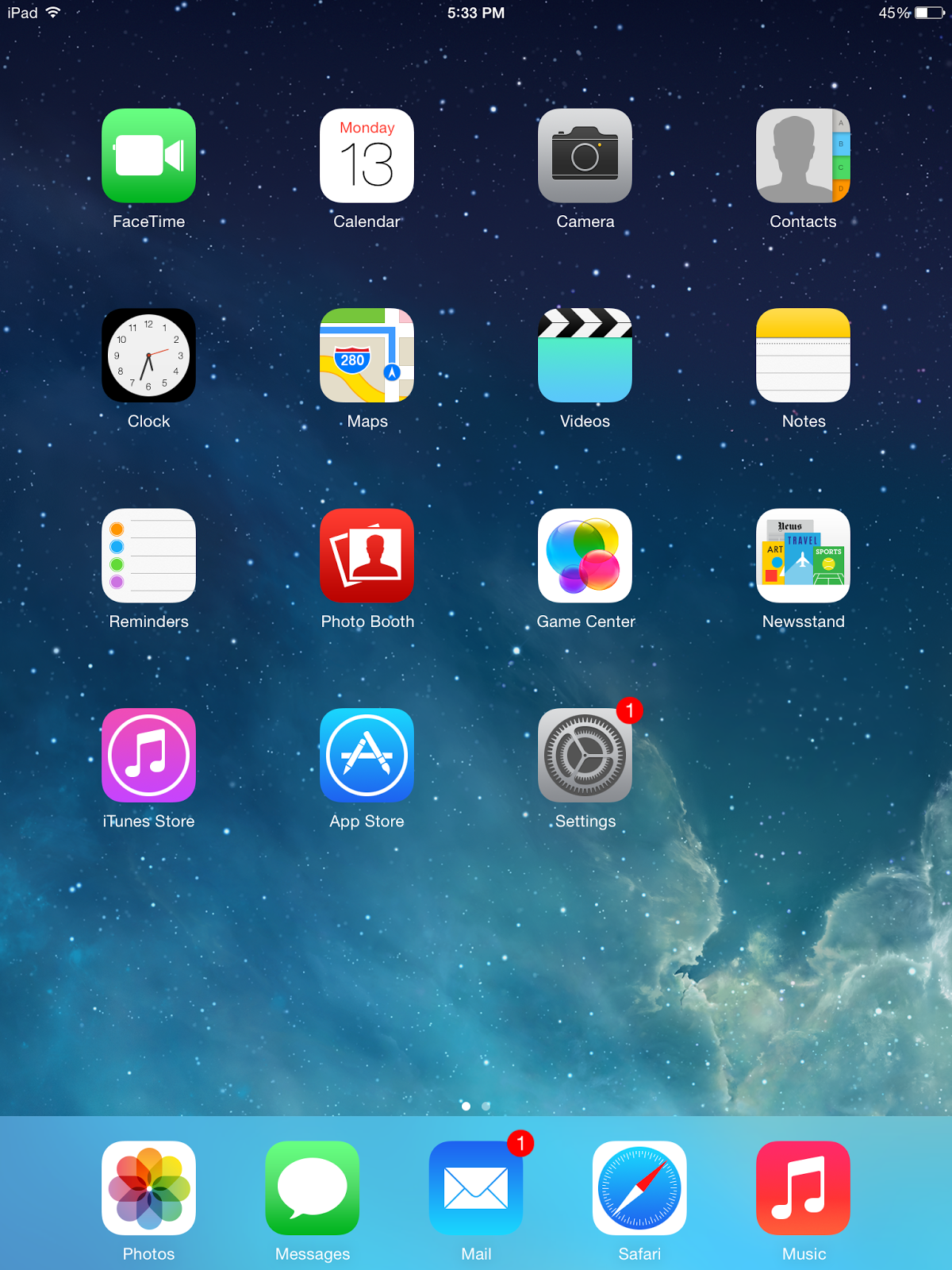
iPad Basics- organizing the home screen

First, I downloaded all the apps we were going to need in a 21 apps folder.  Then I realized, wow, that was an overwhelming amount of apps to look through.  I then decided to put them in folders according to the assignment.  I'm hoping this will be helpful having all the apps in one place each week.  Then it will be easy to go back when looking for an app also.


Pedagogy-

Zeeland (18sec) students filming video commercials on iPad.   They are in Bloom's level of creating.   According to SAMR it is redefinition because sharing with the world was something not previously conceivable.  This activity something that can go worldwide and last for years.

Zeeland (33sec) students doing math calculations and economics on the iPad.  I say that's augmentation.  According to Bloom's that is understanding and applying.  They are doing both of those skills to gather all the information together.

Chicago (2:35) Teacher talks about how using the iPad for assessment has revolutionized how quick we get the results back. This is on Bloom's as analyzing and SAMR as modification.   This turn around in results helps teachers drive instruction.  That is significant in keeping students on track and using best practices.

Chicago (50sec) Second grade students use an ABC magnetic letter app on the iPad instead of actual magnetic letters.  This is substitution.